
Three recipes mean three ingredient lists, onions twice, and one forgotten stick of butter. Thymelist turns them into a single list. Here's how it goes.
Two ways in, one list
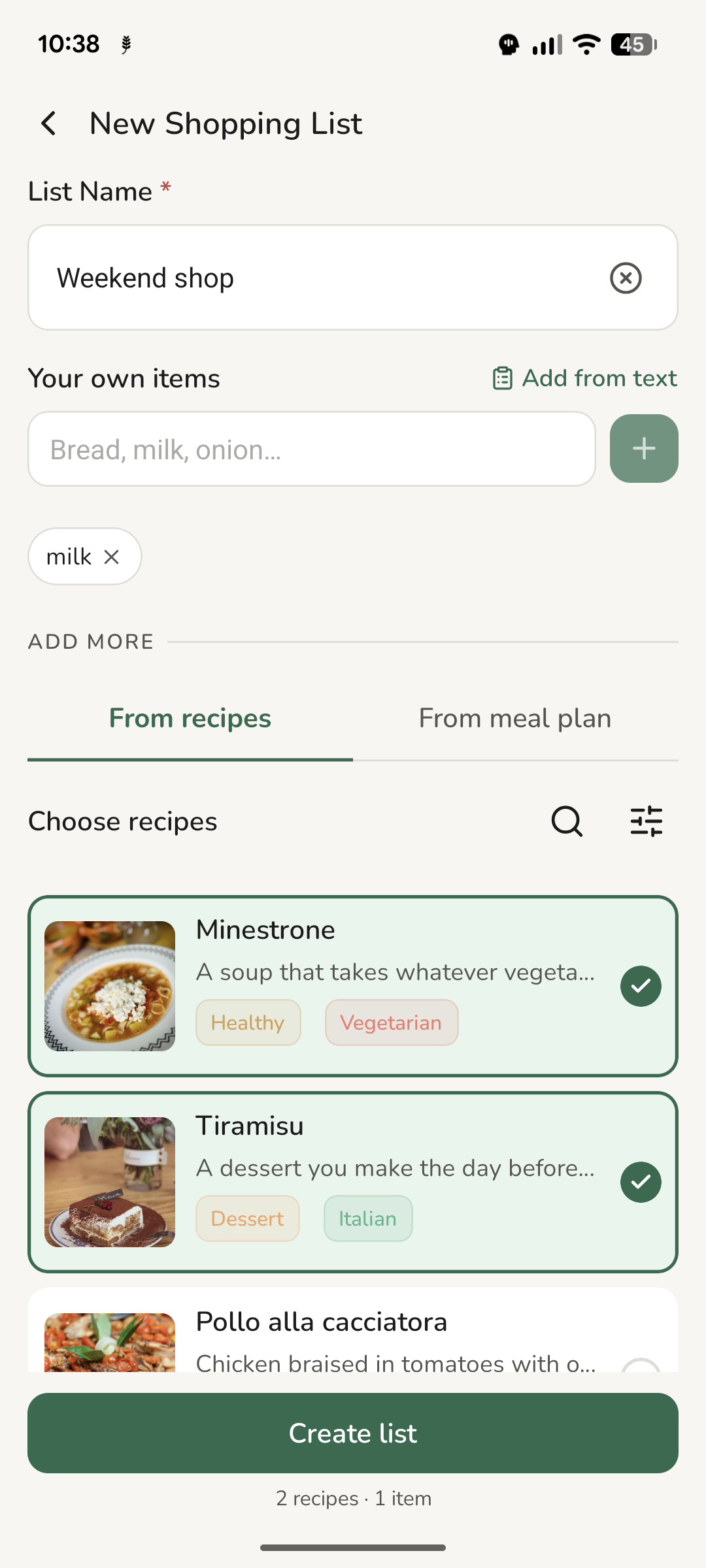
There are two ways to build a list, and neither one is the proper one:
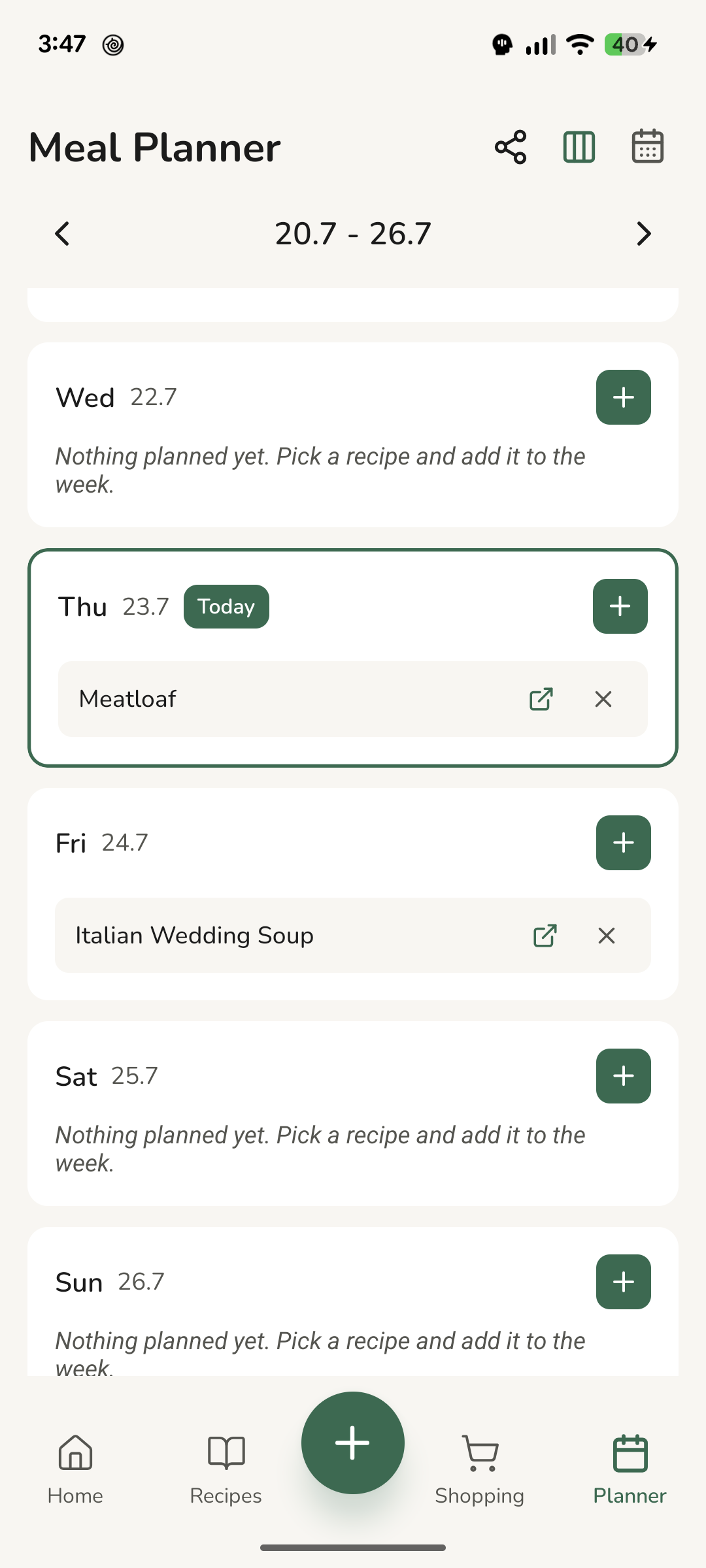
- From recipes - tick the recipes you want to cook. That's it.
- From meal plan - if you lay meals out on the calendar, pick the days and Thymelist takes the recipes off them for you.
So the calendar is not a required stop. If planning isn't your thing, the first way is all you need. And if you enjoy planning, the second saves you the picking.
How the list gets built
When you tap Prepare list, a few things happen at once:
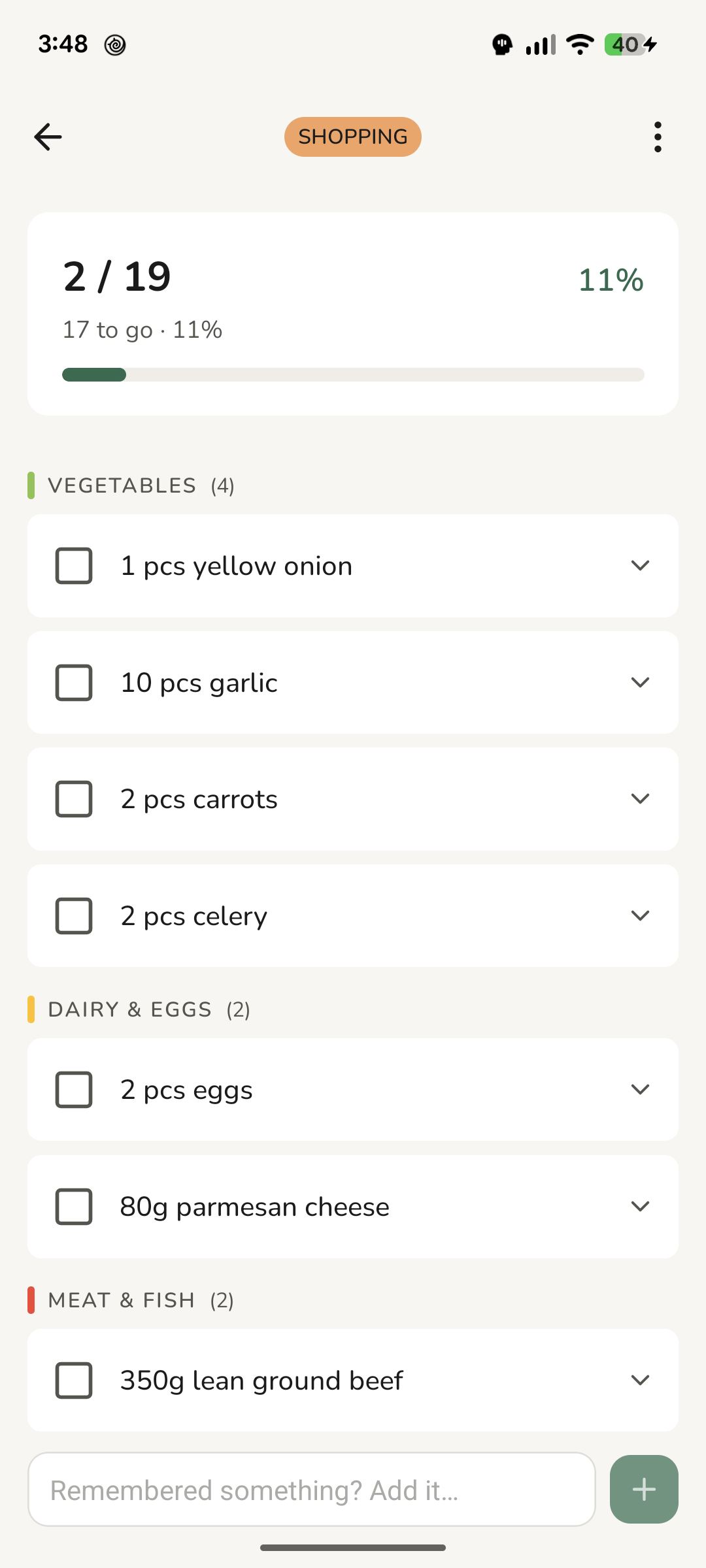
- The same ingredient from two recipes merges. 200 g of flour and 500 g of flour become one line: 700 g of flour.
- Items sort by aisle - fruit, vegetables, dairy, meat and fish, and so on. In the shop you work top to bottom and never double back.
- Every item shows which recipe it came from. Skip one and you know what you're changing.
Cooking for more people? Set the servings before you prepare the list. The quantities are recalculated and go onto the list already sized for the table you're feeding.
A finished list stops changing
The list is built from your recipes the moment you prepare it. Edit a recipe after that and the finished list stays as it was.
That's deliberate. Nobody wants their items shifting around halfway down aisle four. The new quantities show up in the next list you build from that recipe.
What isn't from a recipe
Bread, salt, washing powder. Type an item straight onto the list and it files itself in with the rest.
And when someone in your household sends you a message with ten things on it, you don't have to retype them one by one. Paste the whole text at once and Thymelist pulls the items out of it - each one in your own words, quantities and all. You just tick what should be added. Nothing lands on the list without your say-so.
In the shop
Open the list, tick things off, and you can always see how much is left.
If you already have something at home, tap "Already have it". The item isn't deleted - it stays on the list as handled, so a week later you still know what the recipe called for. And it won't go into your basket.
Out of the list
The list doesn't have to stay on your phone:
- Share a link - send the list to your partner, or anyone in the household. It opens in their browser and they don't need the app. Whatever they tick off in the shop you see on your phone too - you both see the same list, live. They can tick; they can't change your list.
- Shop online - the items go straight into your basket at Košík.cz. That's the only shop for now, and Košík.cz delivers in Czechia. You see the exact product matched to each item before anything is added, and you can swap it or leave the item out. You finish the order on their side, not ours.
- Save as PDF - for when you want the list on paper. It prints with empty boxes, and anything you already have at home is left off.
The rest is just shopping. Which is exactly as much work as it should be.